Headphones have become a companion in daily activities, such as when working, reading, or traveling. Therefore, Bluetooth headphones cannot connect is very frustrating. For example, when using Bluetooth headphones on an airplane and needing personal entertainment from your smartphone or laptop, but the connection suddenly fails.
To continue using them, you need to know what causes Bluetooth headphones cannot connect and how to fix it. A stable Bluetooth connection will allow you to listen to music, podcasts, or audiobooks without any problems.
The Causes of Bluetooth Headphones Cannot Connect
Before learning how to fix Bluetooth headphones cannot connect, you need to know what’s causing the problem. Here are some things that can cause connection issues.
- Bluetooth is not turned on: Often, users forget to turn on Bluetooth on both devices, preventing the connection from being established.
- Still connected to another device: If your Bluetooth headphones are still connected to your laptop and you want to connect them to your smartphone, the connection will not be established.
- Distance: Too much distance between Bluetooth devices can prevent them from connecting.
- Obstacles: Physical barriers such as walls or metal objects can interfere with the connection.
- Signal interference: Other Bluetooth devices, WiFi, or microwaves can interfere with the connection.
- Incompatible Bluetooth versions: Incompatible Bluetooth versions between the headphones and the device will prevent them from connecting.
- Outdated software: Outdated software on the headphones and operating system on the phone will prevent the connection from being established.
- Low battery: A low battery on your laptop or smartphone can prevent the Bluetooth connection from working optimally.
How to Fix Bluetooth Headphones Cannot Connect
After identifying the cause of the problem, it’s time to learn how to fix Bluetooth headphones cannot connect. Here are the steps you can take:
Make sure Bluetooth is turned on
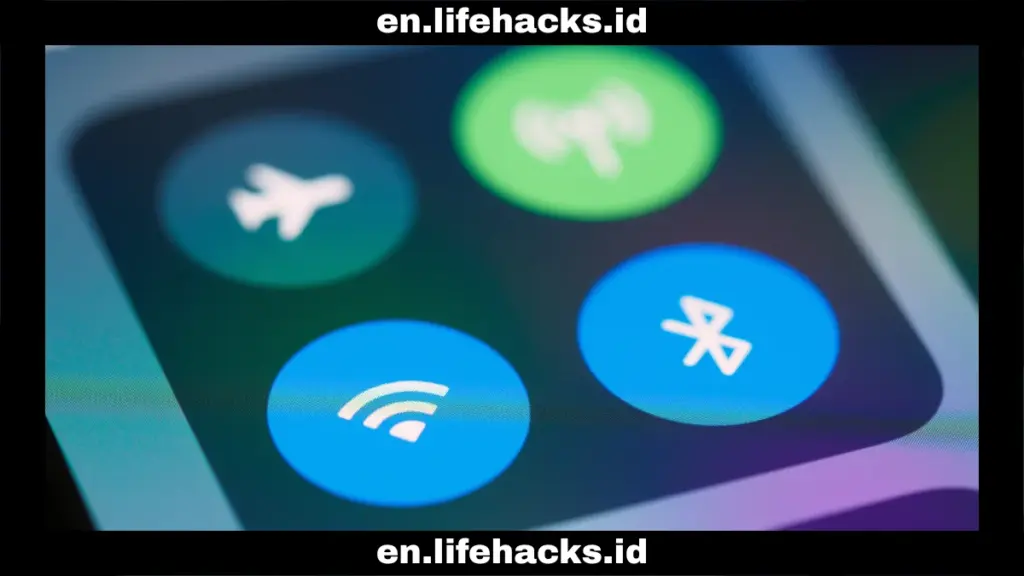
We often forget to turn on Bluetooth on source devices such as smartphones, laptops, or tablets. Therefore, make sure Bluetooth on the source device is set to “ON” so it is ready to connect to the headphones. Usually, Bluetooth on headphones is automatically turned on and will search for Bluetooth from the source device.
You just need to wait a few moments until the Bluetooth headphone name appears on the source device. After that, you just need to select it to connect the two devices.
Turn off other connected devices
In addition to forgetting to turn on Bluetooth on the source device, we also often forget to turn it off. So when you want to connect headphones to another device, they don’t appear.
For example, when you’re working while listening to music, the headphones are connected to your laptop. Then you want to listen to music while exercising using your phone, but Bluetooth doesn’t appear because it’s still connected to the laptop that’s turned on. In that case, you need to turn off Bluetooth on the laptop first.
Ensure distance and avoid obstacles
Even though Bluetooth headphones are designed without wires, that doesn’t mean you can use them however you want. If the headphones are too far away from the source device, the connection will be lost. Bluetooth usually has a maximum range of 10 meters.
In addition to distance, obstacles from infrastructure and other devices can also be a problem. Walls, separate rooms, WiFi, and microwaves can interrupt the Bluetooth connection. Therefore, make sure to keep the headphones within a reasonable distance from the source device and avoid obstacles when using Bluetooth headphones.
Always update the software
To maintain your Bluetooth connectivity in the long term, it is very important to keep the software updated. You can update it when it’s time, don’t wait until you can’t connect first. Because it will take time if you need it at any time.
Re-pairing
The Bluetooth headphone name that appears on the source device may still not connect. If this happens, you need to re-pair the two Bluetooth devices. To do this, first delete it from the connection list.
Open the Bluetooth settings and find your headphone name, then select “Forget.” Once it’s gone from the device list, you can reconnect your Bluetooth headphones from scratch.
Bluetooth connections are prone to disconnecting. This is due to many factors that can cause the connection to drop. These range from personal errors, such as forgetting to turn the connection on and off, to distance and obstacles. In addition, outdated software can also cause Bluetooth to disconnect.
However, you don’t need to worry because all these problems can be solved by making sure your device is turned on and turning off other connected devices. Furthermore, you need to maintain distance between devices, avoid obstacles, and always update the software. If it still doesn’t work, you can reinstall Bluetooth by deleting it first. This will resolve the issue of Bluetooth headphones cannot connect.
With a stable Bluetooth connection, you can fill your daily activities with music, podcasts, or audiobooks without any obstacles. It’s quite simple, but it can make life more colorful.
Table of Contents
Muhammad

Hello, my name is Rifqi. I have studied how language can influence human interaction and impact sociocultural aspects. Currently, I work as a corporate content writer at Dimulti Type Approval. Through my writing, I hope to make difficult technical matters or everyday issues easier for you to understand.
Related Articles